
How to Secure CData Arc (.NET / Windows Edition)
CData Arc is a web application designed to simplify data integration with visual tools and built-in connectors for MFT, EDI, APIs, and backend systems. It supports secure communication protocols such as AS2, FTP, SFTP, and REST. To ensure data confidentiality, authenticity, and integrity, CData strongly recommends enabling TLS/SSL encryption using trusted digital certificates.
Why enable HTTPS/TLS in CData Arc?
CData Arc functions as a web-based integration platform, and depending on configuration, it may need to receive external connections
- Webhook connectors receiving external notifications from SaaS platforms (e.g., Salesforce, Shopify, HubSpot)
- API connectors that expose Arc endpoints to external applications
- The Management API, which enables remote administration and interaction with Arc
In these scenarios, Arc must be accessible over HTTPS, and many SaaS systems do not accept self-signed certificates. For internal testing or local evaluation, however, you can use self-signed certificates created in IIS.
For production use, certificates issued by trusted Certificate Authorities (CA) such as ZeroSSL, or DigiCert are recommended.
Types of TLS/SSL in Arc
Enabling inbound TLS/SSL can be divided into two main categories:
- TLS for the web host server (HTTP-based traffic)
- Covers the Arc web console, API connectors, and AS2/AS4 endpoints
- HTTPS must be enabled at the web server level (IIS for .NET edition)
- TLS for all other servers (non-HTTP protocols)
- Includes inbound traffic for servers like FTP, OFTP, and HL7 MLLP
- These are configured directly within Arc under the Profiles page
Launching and starting CData Arc
- Download CData Arc, visit the official CData Arc download page: Downloads | CData Software
- Run the installer and complete the installation process
- After installation, open the CData Arc shortcut from the Start Menu or installation folder to launch the app
Restricting access to Arc’s internal port (8001)
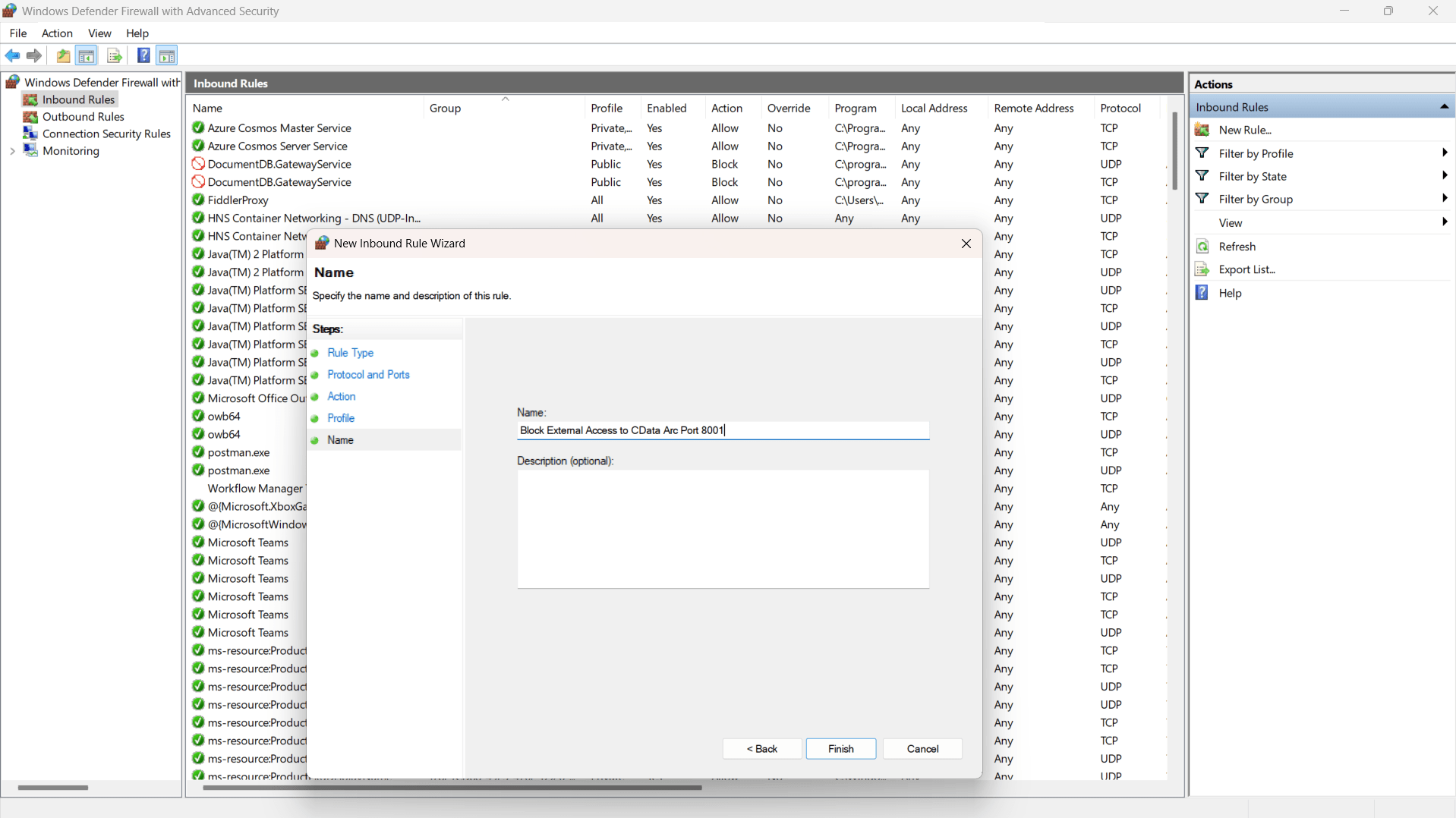
CData Arc uses port 8001 for its internal service, so restrict it to local access for security and use HTTPS for external connections.
- Open Windows Defender Firewall, and select Advanced Settings
- In the left pane, click Inbound Rules, then select New Rule
- Select Port and click Next
- Choose TCP, select specific local ports, and enter 8001, then click Next
- Select Block the connection to stop external access, then click Next
- Apply the rule to Domain, Private, and Public profiles, then click Next
- Enter a name such as “Block External Access to CData Arc Port 8001” and click Finish
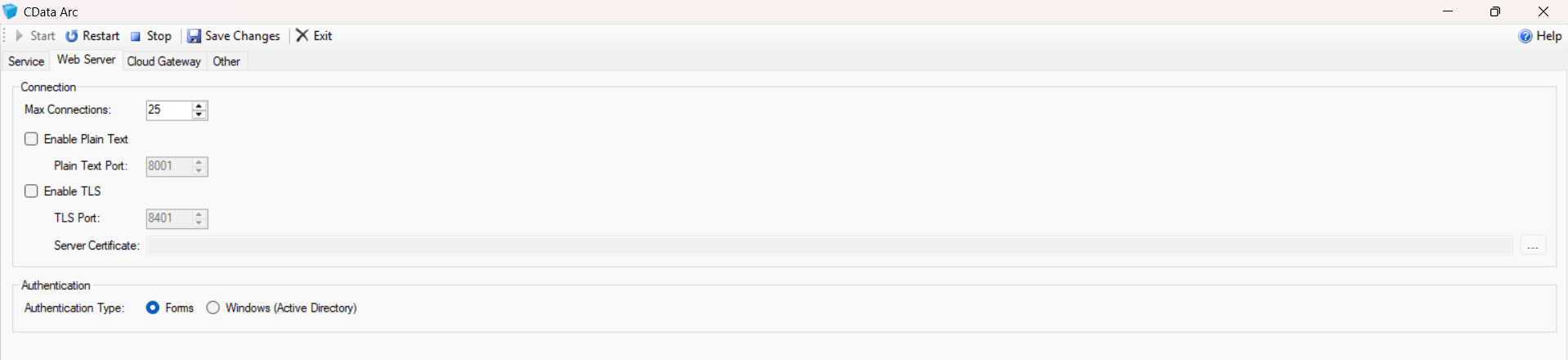
- Now right click on CData Arc Server from the task bar and select Server Options, choose authentication as Forms
Enabling TLS/SSL for inbound traffic
TLS/SSL for the web server using IIS manager
- Open IIS Manager and click your server’s name in the Connections pane
- Create a Self-Signed Certificate (for testing)
- Click Server Certificates in the middle pane
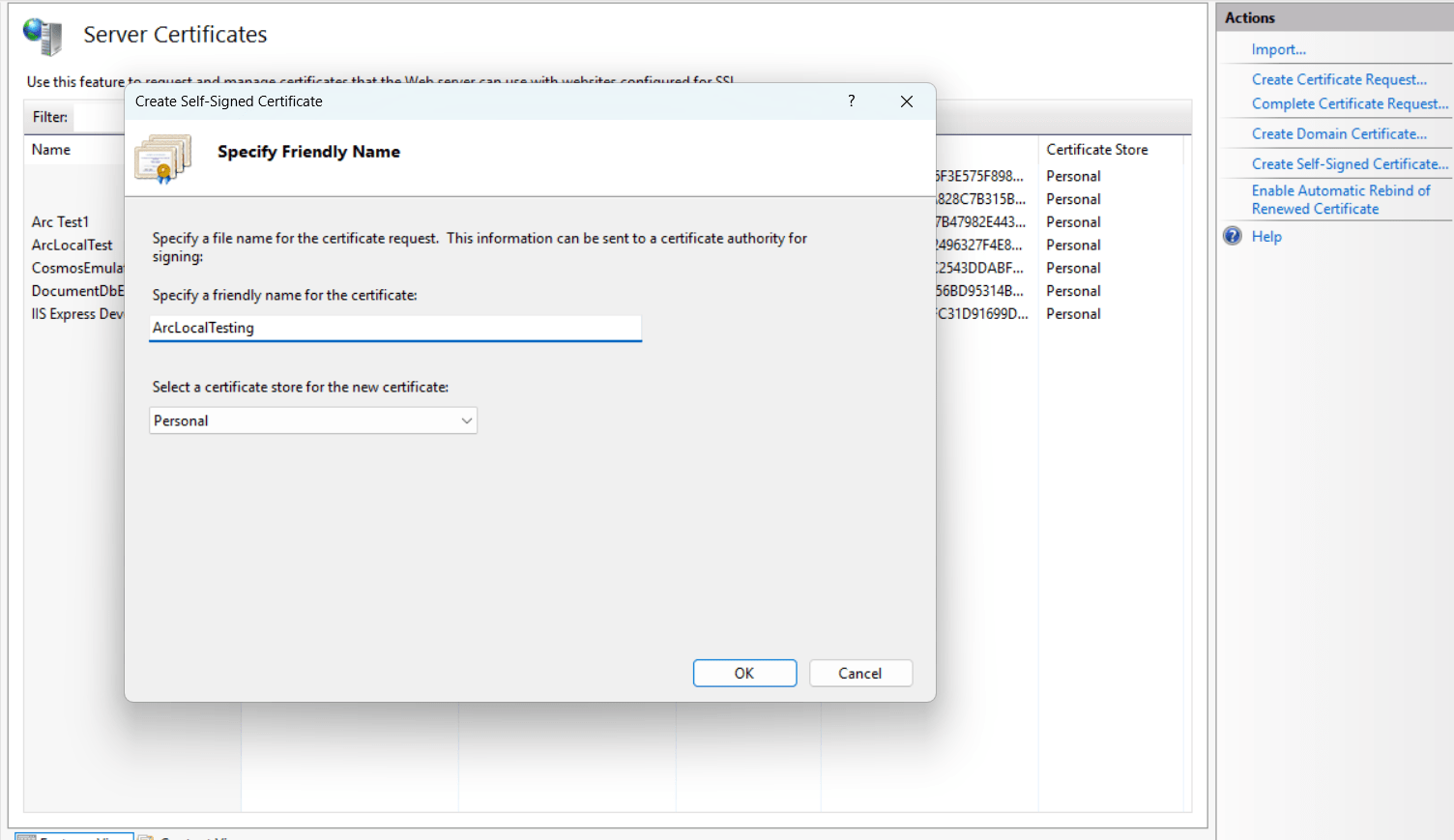
- In the right-hand pane, click Create Self-Signed Certificate
- Enter a friendly Name (e.g., ArcLocalTest)
- Select Personal for the certificate store
- Click OK, the certificate should now appear under Server Certificates
- Export the new certificate in .pfx format to the local folder and secure it with the password
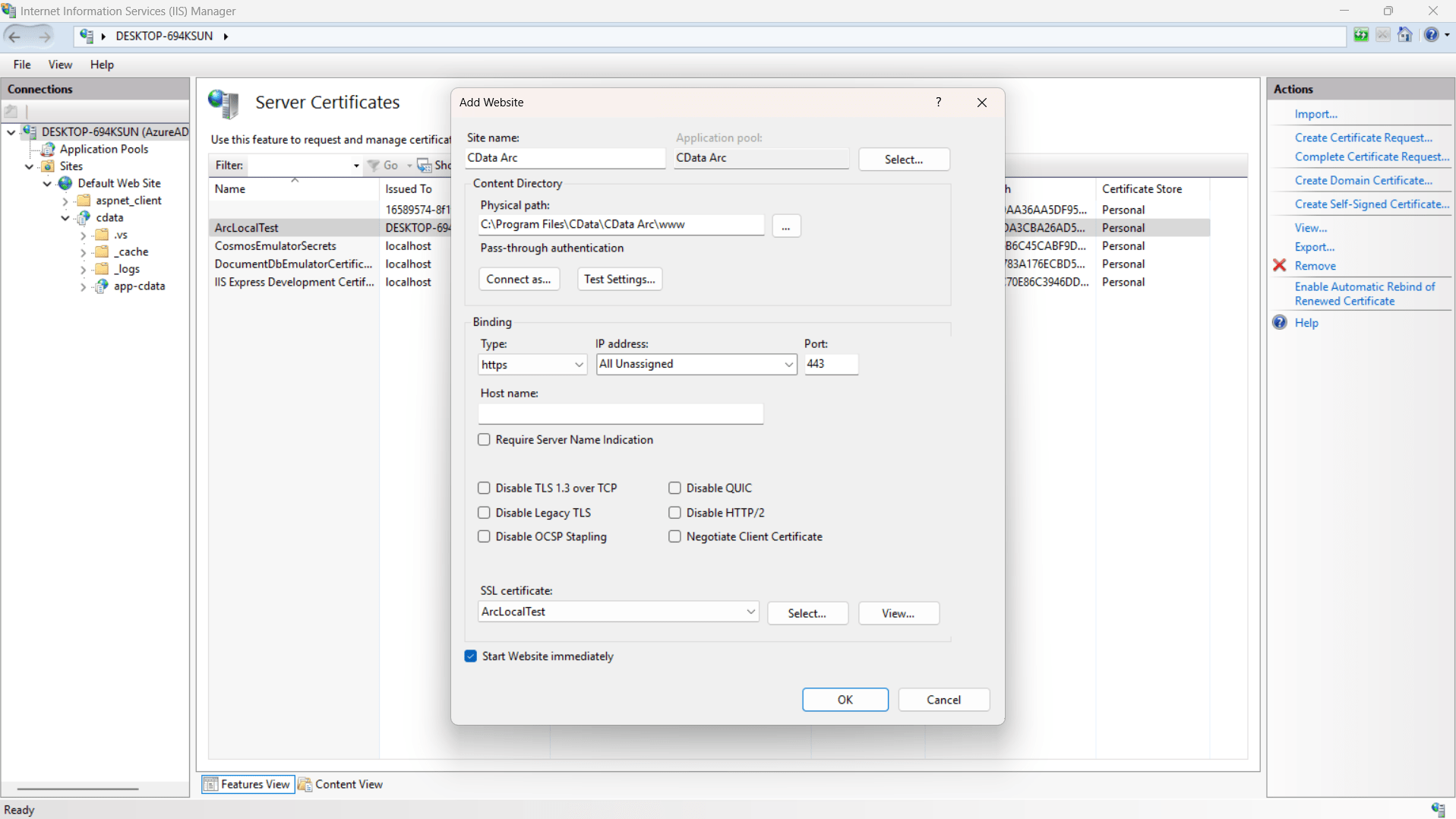
- Now configure CData Arc to use HTTPS with the created SSL certificate (ArcLocalTest) for secure access on port 443
- Click Restart in the Actions pane
- Open a web browser and visit
- If prompted with a “Not Secure / Self-signed” warning, proceed (this is expected for local testing)
- CData Arc now runs and is accessible over HTTPS
TLS/SSL for other servers
Use the Profiles page to enable TLS/SSL for the following servers:
Each server has a tab on the Profiles page where you can enable or disable TLS/SSL
Note: Here we have used FTP Server for the connection
Configure FTPS in Arc
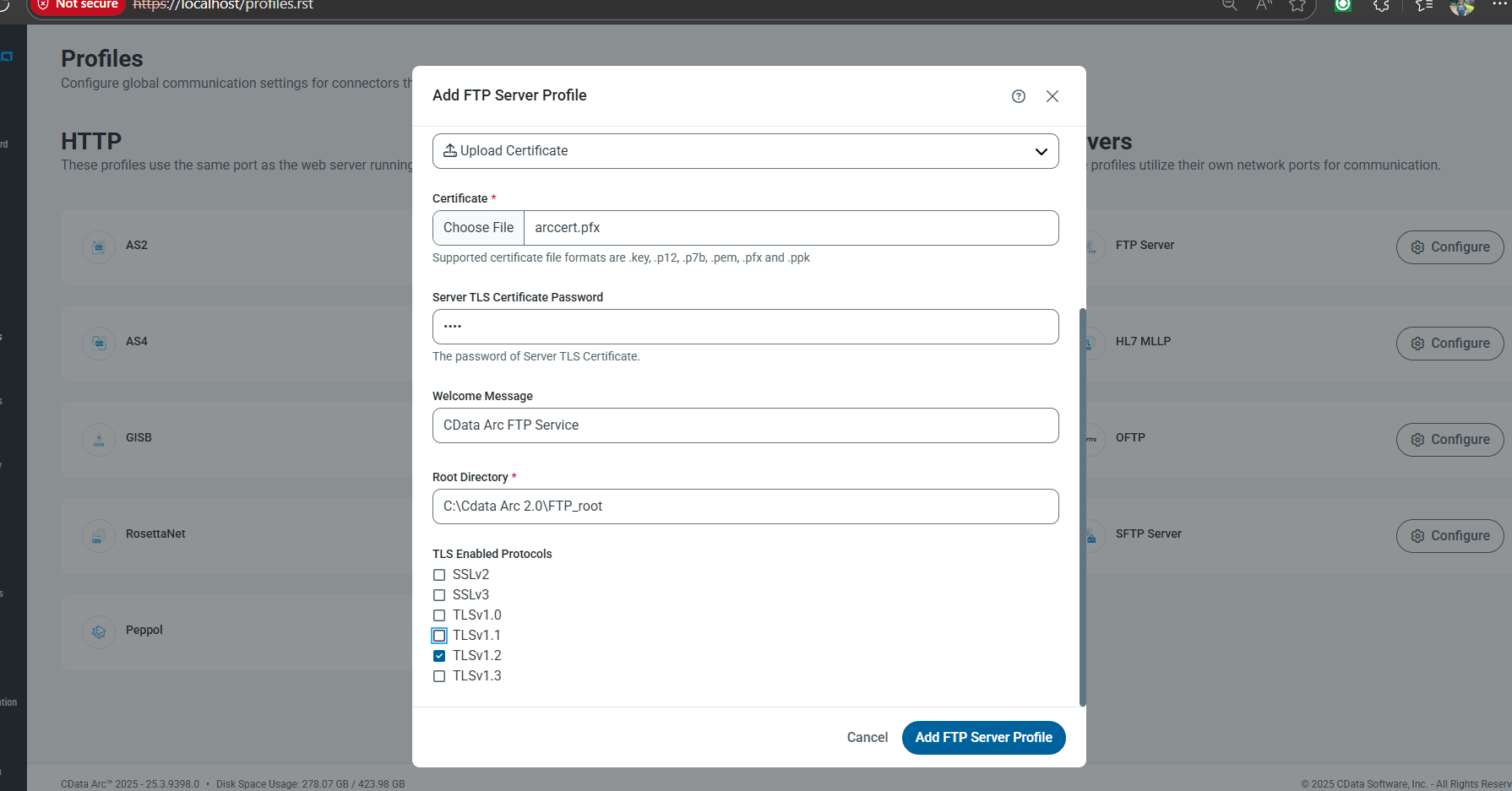
- In the CData Arc web UI, go to Profiles, click Servers and choose FTP Server and configure
-
Enter the following settings:
Setting Value Port 21 FTP Over TLS Explicit Server TLS Certificate Your .pfx file name Server TLS Certificate Password Your export password Welcome Message CData Arc FTP Service Root Directory C:\ArcData\FTP_Root TLS Enabled Protocols TLSv1.2 - Click Add FTP Server Profile
- The FTP server status should display as Active
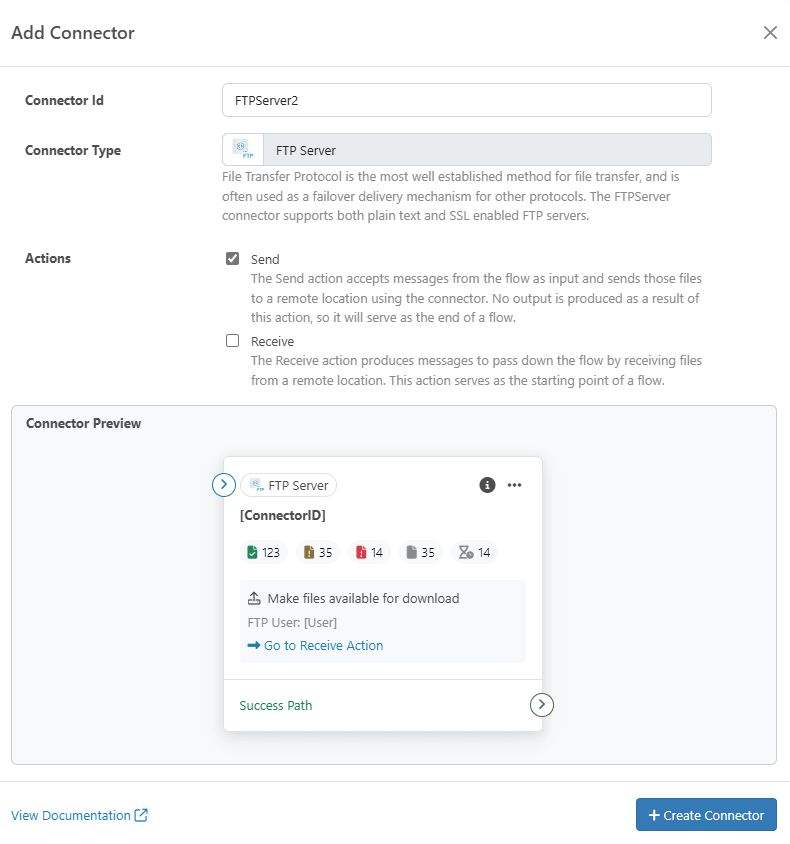
- Navigate to Flows
- Search for FTP Server and add the flow
- Enable Send and click on Create Connector
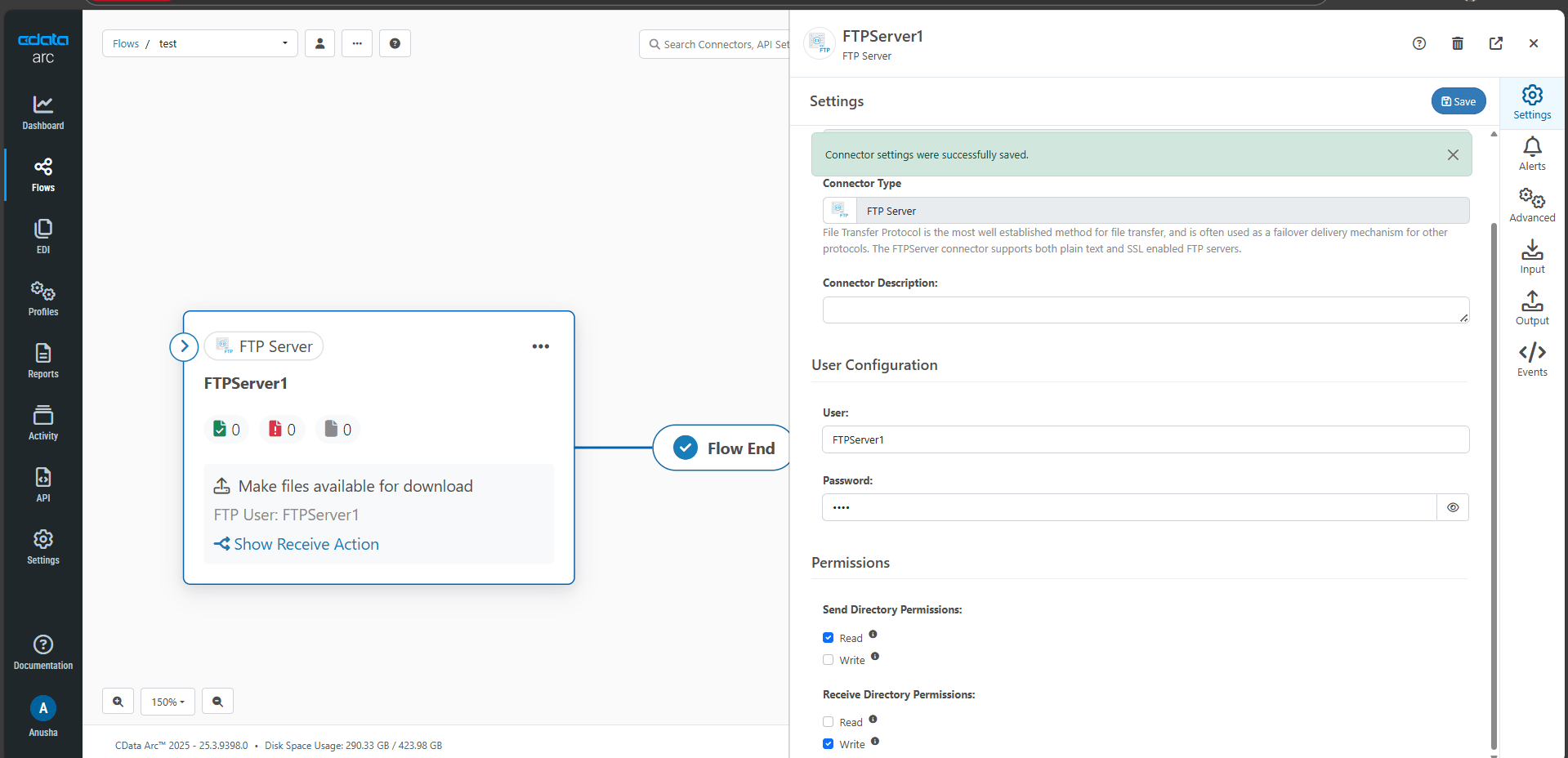
- Set up the password and username, save it
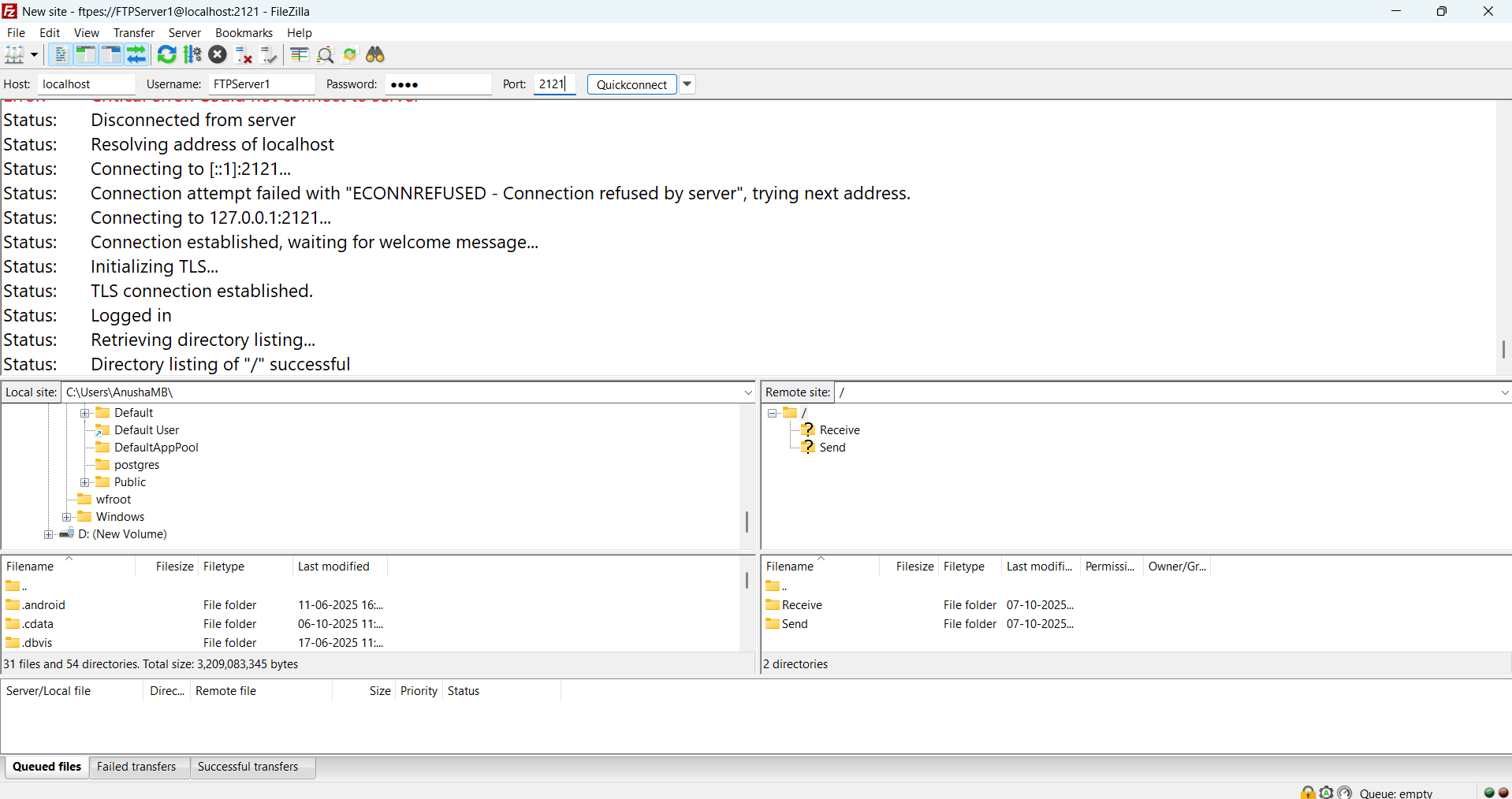
Connecting FileZilla to the CData Arc FTP server
Follow these steps to connect FileZilla as a client to your CData Arc FTP server and securely transfer files:
- Download and install the FileZilla Client application
- Run FileZilla to connect with your CData Arc FTP server
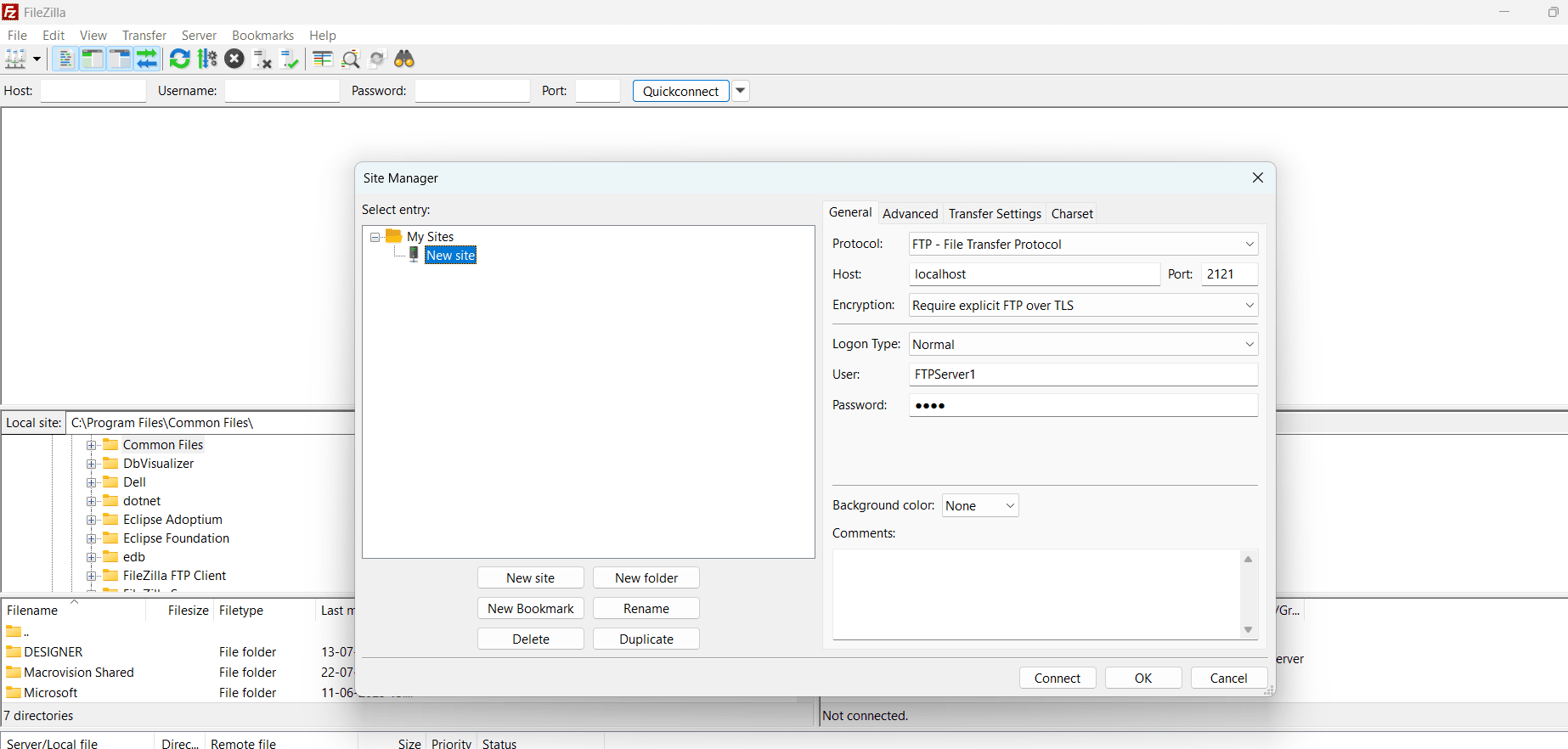
- Navigate to File and choose Site Manager
- Create a new site and enter the following connection properties:
- Protocol: FTP – File Transfer Protocol
- Host: localhost
- Port: 21 or 2121
- Encryption: Require explicit FTP over TLS
- Logon Type: Normal
- User: As configured in the CData Arc FTP server flow
- Password: As configured in the CData Arc FTP server flow
- Click Connect
- Once connected, the status displays as Successful, and the local directories are now linked to the CData Arc FTP Server
- Click Connect
- Once the connection is established, status is displayed as Successful, and all the local directories are connected to CData Arc FTP Server
Hardening server security settings
User can increase the security of CData Arc server by setting the Scripting Engine Hardening Level configuration parameter in the Arc configuration files. By default, this parameter is set to 0, which does not block any operations. User can set it to a value between 0 and 3, where each higher value increases security by disabling certain operations. The following table shows which operations are disabled at each hardening level.
| Level | Disabled Operations |
|---|---|
| 0 | All operations are allowed. This is the default. |
| 1 | The most vulnerable operations are disabled. This includes any operations that allow the user to interact with the host system in an arbitrary way. |
| 2 | In addition to the operations disallowed in level 1, this level disables operations for creating new users, accessing files on disk in a non-arbitrary way, and introducing recurring tasks. |
| 3 | In addition to the operations disallowed in levels 1 and 2, this level disables operations for obtaining sensitive information from the server or performing arbitrary HTTP requests. |
Use the following sections to set the hardening level for your installation.
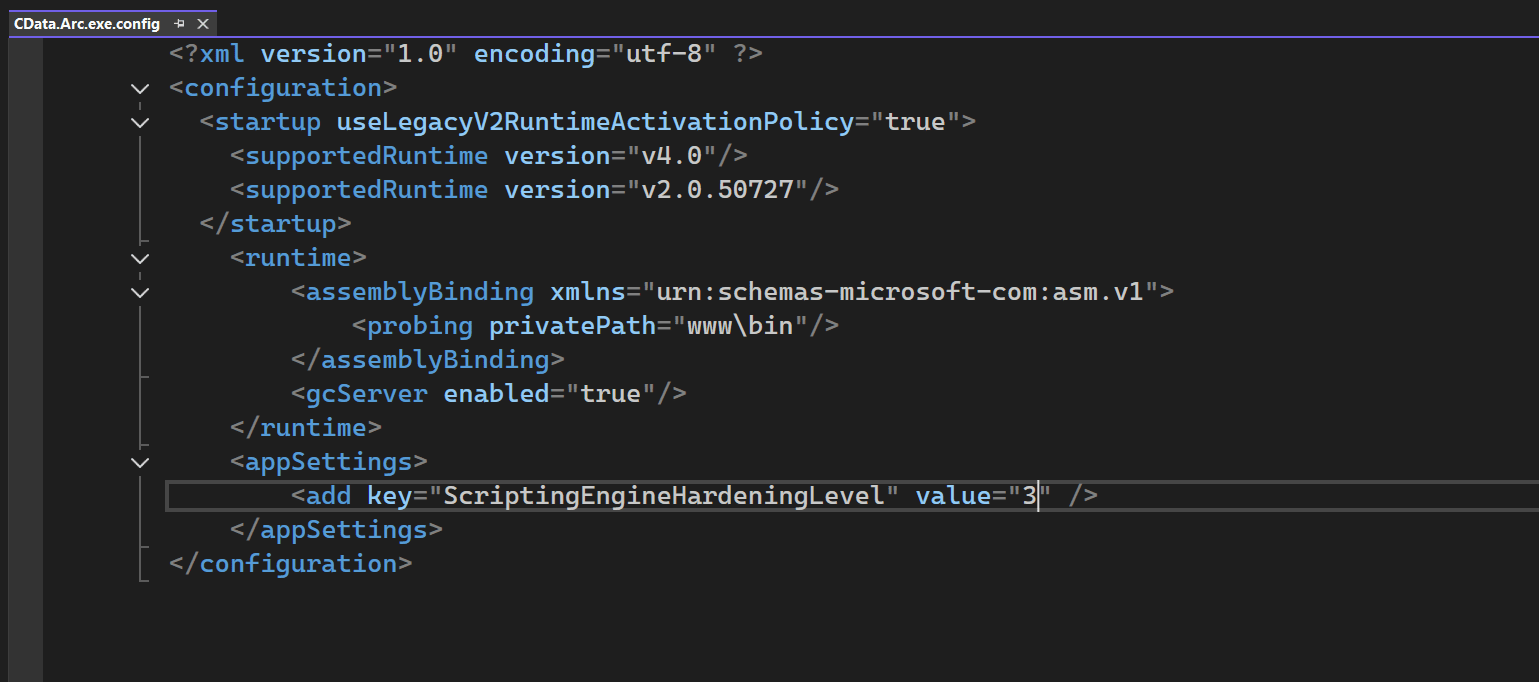
.NET
Use a text editor to open the Web.Config file in the www folder of the instsallation directory. At the bottom, inside the appsettings tag, add the following line and set value to your desired level:
<appSettings>

            <add key="ScriptingEngineHardeningLevel" value="0" />

        </appSettings>
Java
Use a text editor to open the arc.properties file in the installation directory. Add a line for the following property, and set the number to your desired level:
cdata.initParameters=ScriptingEngineHardeningLevel:0
This Demonstrates securing CData Arc with HTTPS using self-signed certificates created in IIS for internal or test environments. For production or external integrations such as webhooks, use certificates from a trusted CA like ZeroSSL to ensure compatibility with SaaS platforms and browsers. Strengthens Arc deployment by securing inbound traffic through encryption and trusted identity verification.
While this section focuses on inbound security, TLS/SSL can also be applied to outbound traffic, ensuring that data sent from CData Arc to external systems remains fully encrypted and secure end to end.
Ready to secure your data integration using CData Arc
Start your free 30-day trial of CData Arc today and experience secure, and automated data exchange with full TLS/SSL protection.
Ready to get started?
Use Arc's free 30-day trial to start building your own custom workflows today: